
Screenshots

App details
- Version
- 3.2 | 0
- Size
- 11.73 MB
- Updated
- May 23, 2023
- Requires
- Windows 7
- Language
- English
- License
- Free
- Developer
- Horizon Data
- Category
- Windows OS
SoftPas in:
This product is also available in the following languages:
About Reboot Restore Rx
Download Reboot Restore Rx – Free Windows Security & System Restore Tool
Overview
Reboot Restore Rx is a lightweight, free security program designed exclusively for Windows PCs. Developed by Horizon Data, this utility belongs to the “Security Backups” sub‑category and has been a staple in the Windows security toolbox since its introduction in 2013. The core idea behind Reboot Restore Rx is simple yet powerful: it creates a snapshot of your system’s configuration, installed programs, and registry settings, then automatically restores that snapshot every time the computer reboots. This approach effectively erases unwanted changes, malware infections, or accidental deletions, delivering a “clean‑slate” experience without the need for manual reinstallations or costly third‑party tools.
Over the past decade, the program has amassed more than 3,300 downloads, with a steady user base primarily located in the United States. Although the latest official update was released on October 15 2013, the software remains fully functional on legacy operating systems such as Windows XP and earlier versions. Its minimal storage footprint—often less than 5 MB—makes it ideal for older machines with limited disk space. Users appreciate its straightforward interface, which requires only a few clicks to activate, schedule, or disable the restoration process.
Because Reboot Restore Rx runs as a background service, it does not interfere with day‑to‑day tasks, and it can be configured to protect specific user accounts while leaving administrator privileges untouched. This flexibility is especially valuable in shared environments like schools, libraries, and public kiosks where multiple users need reliable protection against accidental or malicious changes. In the sections that follow, we’ll dive deeper into the feature set, installation steps, system compatibility, and the pros and cons that help you decide whether this free tool fits your security strategy.
Key Features & Capabilities
- Automatic system restoration on every reboot, ensuring a pristine state after each shutdown.
- Snapshot creation of the entire system drive, including registry, system files, and user profiles.
- Selective exclusion of folders or files to preserve essential data (e.g., documents, custom settings).
- Lightweight footprint – less than 5 MB of disk space and minimal RAM usage.
- Support for multiple restore points, allowing you to roll back to a previous snapshot if needed.
- Simple, user‑friendly interface with one‑click activation and deactivation.
- Ability to run in “locked down” mode, preventing users from disabling the service without admin rights.
- Compatibility with Windows XP, Windows Vista, Windows 7, and earlier Windows versions.
- Free of charge with no hidden fees, ads, or trial periods.
- Automatic logging of restore events for troubleshooting and audit purposes.
While the feature list may look straightforward, each component works together to create a robust safety net. The automatic restoration process is triggered by the Windows shutdown sequence, which means that even if a virus manages to execute and modify system files, those changes will be wiped clean the next time the computer powers up. The selective exclusion feature is a real lifesaver for users who need to keep personal files—such as spreadsheets or photos—intact across reboots. By configuring exclusions, you prevent the tool from overwriting important data while still benefiting from a full system reset.
The ability to maintain multiple restore points adds an extra layer of flexibility. For example, an IT administrator can schedule a weekly “clean” snapshot after applying patches, then keep an additional snapshot from the previous month for reference. If a recent software update introduces instability, the administrator can simply revert to the older snapshot without reinstalling the entire operating system. Moreover, the logging feature provides transparency: every restore event is recorded with a timestamp, allowing you to audit when and why a restoration occurred—an essential capability in regulated environments.
Overall, Reboot Restore Rx packs a surprisingly rich set of capabilities into a free, lightweight package. Its emphasis on simplicity does not compromise security, making it an attractive option for both novice users seeking an “install‑and‑forget” solution and power users who want granular control over what gets restored and what stays untouched.
Installation, Usage & Compatibility
Step‑by‑Step Installation Guide
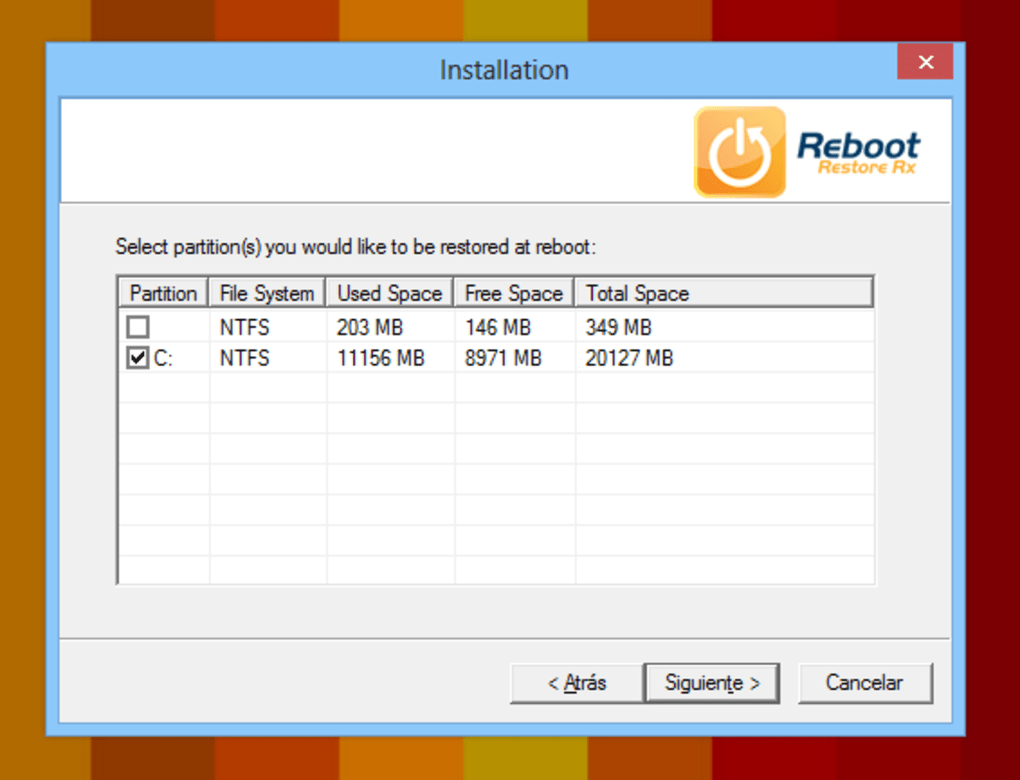
- Download the latest installer from the official Horizon Data website or a trusted software repository.
- Run the
.exefile and follow the on‑screen prompts. The wizard will ask you to accept the license agreement and choose an installation folder (the default location works for most users). - During installation, you’ll be prompted to create the first restore point. Click “Create Now” to let the program capture a snapshot of your current system state.
- After the installation completes, the Reboot Restore Rx icon appears in the system tray. Right‑click the icon to access the main menu.
- From the menu, select “Enable Restoration” to activate the automatic reboot feature. You can also schedule the creation of additional restore points by choosing “Schedule…” and setting a daily or weekly interval.
The entire process typically takes under five minutes, even on older hardware. Because the program runs as a Windows service, no additional configuration is required after the initial setup—simply reboot the computer to test that the restoration occurs as expected.
How to Use Reboot Restore Rx Effectively
Once enabled, the software will automatically revert the system to the most recent restore point each time the computer shuts down or restarts. If you need to make permanent changes—such as installing new drivers or software—you can temporarily disable the restoration by right‑clicking the tray icon and selecting “Disable Restoration.” Remember to re‑enable it after completing the changes, or schedule a new restore point to capture the updated state.
For environments where users must retain personal files, configure the exclusion list: open the “Options” menu, navigate to “Exclusions,” and add folders (e.g., C:\Users\Public\Documents) that should not be overwritten. This ensures that essential data survives the nightly reset while the rest of the system remains protected.
System Compatibility
Reboot Restore Rx is officially supported on Windows XP, Windows Vista, Windows 7, and earlier versions of the Windows operating system. It runs on both 32‑bit and 64‑bit architectures, though the original binary was compiled for 32‑bit environments; modern 64‑bit systems handle it through Windows’ built‑in compatibility layer without performance penalties.
Because the software relies on core Windows APIs for snapshot creation, it is not compatible with Windows 8, Windows 10, or Windows 11. Users of newer operating systems should consider alternative solutions such as Windows System Restore or third‑party imaging tools. However, for legacy machines—often found in schools, libraries, and small business kiosks—Reboot Restore Rx remains a reliable and cost‑free option.
Pros, Cons & Frequently Asked Questions
Pros
- Completely free with no hidden fees or trial limitations.
- Extremely low system resource consumption—ideal for older PCs.
- Automatic restoration eliminates the need for manual clean‑ups.
- Selective exclusions protect important user data.
- Simple one‑click activation/deactivation makes it accessible to non‑technical users.
Cons
- No official support for Windows 8/10/11, limiting its use on modern machines.
- Last official update was in 2013; some users may be concerned about long‑term maintenance.
- Lacks advanced reporting dashboards found in paid backup solutions.
- Cannot create incremental backups; each snapshot is a full system copy.
FAQ
Is Reboot Restore Rx truly free, or are there hidden costs?
Reboot Restore Rx is 100 % free. Horizon Data provides the software at no charge, and there are no hidden fees, premium tiers, or ad‑supported versions. You can download, install, and use all features without paying a cent.
Can I use Reboot Restore Rx on Windows 10?
Officially, the program supports Windows XP through Windows 7. While some users have reported partial functionality on Windows 10 using compatibility mode, it is not guaranteed and may lead to unexpected behavior. For Windows 10/11, consider native System Restore or other modern backup utilities.
How does the exclusion list work?
The exclusion list lets you specify folders or files that the restore process will ignore. Add paths (e.g., C:\Users\Public\Documents) via the “Options → Exclusions” menu. During each reboot, the program restores everything else but leaves the excluded data untouched, ensuring personal files survive the reset.
Will Reboot Restore Rx interfere with antivirus software?
No. The tool runs as a separate Windows service and does not conflict with most antivirus programs. In fact, it complements them by providing an additional layer of protection—any malware that slips past real‑time scanning will be removed on the next reboot.
Can I schedule multiple restore points?
Yes. Through the “Schedule…” option, you can set daily, weekly, or custom intervals for automatic snapshot creation. This allows you to maintain a history of system states and roll back to a previous point if a recent change causes issues.
Conclusion & Call to Action
Reboot Restore Rx stands out as a dependable, no‑cost security backup tool for legacy Windows machines. Its core strength lies in its simplicity: a single click enables automatic system restoration at every reboot, providing a robust safety net against accidental changes, malware, and user errors. While the lack of updates for modern Windows versions is a notable drawback, the program remains an excellent fit for environments that still rely on Windows XP, Vista, or 7—especially in education, public access computers, and small businesses with tight budgets.
If you manage a fleet of older PCs and need a hands‑free way to keep them clean, Reboot Restore Rx offers exactly the protection you’re looking for without any licensing fees. Download the installer today, set up your first restore point, and enjoy peace of mind knowing every reboot returns the system to a known good state.
Final Verdict: For Windows XP‑based setups, Reboot Restore Rx is a free, lightweight, and highly effective solution that delivers automatic system recovery with minimal configuration. Its pros far outweigh the cons for its target audience, making it a recommended tool for anyone seeking a simple yet powerful security backup option.
Click here to download Reboot Restore Rx now and start protecting your Windows PC instantly.
Guides & Tutorials
How to install Reboot Restore Rx
- Click the Download button above.
- Once redirected, accept the terms and click Install.
- Wait for the Reboot Restore Rx download to finish on your device.
How to use Reboot Restore Rx
This software is primarily used for its core features described above. Open the app after installation to explore its capabilities.
User Reviews
No reviews yet. Be the first to share your experience.
You may also like
more
Llama 2
Free-to-use large language model As the new addition to Meta’s arsenal of langua...

NotebookLM
Revolutionizing the note-taking and idea-generation process NotebookLM is an exp...

Github co pilot
AI-inspired software development and coding platform GitHub Copilot is a browser...

Google Gemma
Google’s lightweight AI models Introducing Google Gemma , a family of cutting-ed...

AI Image Enlarger
A free app for Windows, by ai-image-larger. AI Image Enlarger is a free software...

DALL E
AI-driven text-to-image transformation engine DALL·E is a free graphic and desig...